Research Notes — Your Personal Research Board
What This Space Is For
This space is a research desk on a board. Instead of a technical tool, think of it as a place where you:
- Collect reading materials, references, clippings, and raw findings.
- Organize them into categories (columns) that match how you work.
- Analyze content by writing structured Markdown notes.
- Track how your thinking progresses, from raw material to finished conclusion.
Everything you put here is saved automatically and stays in one place, so you can come back days or weeks later and continue exactly where you left off.
How It Works — The Board
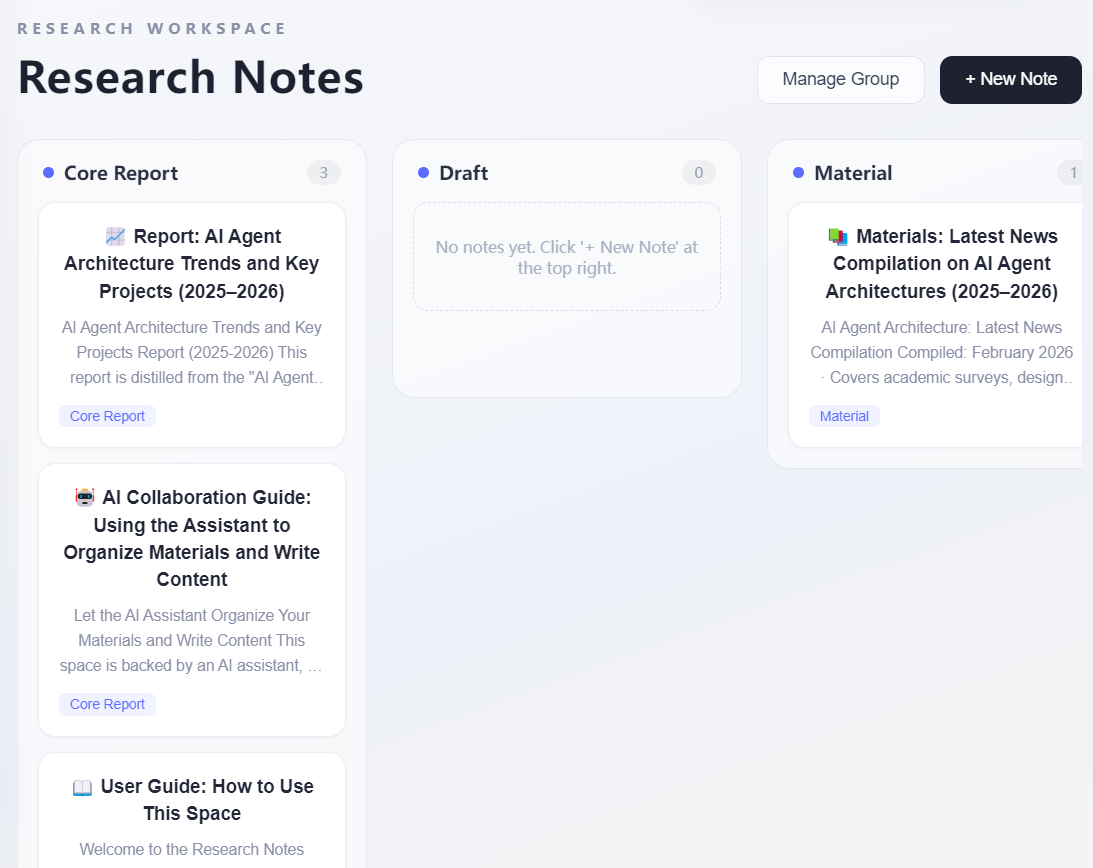
The home screen is a board made of columns and cards:
- Each column is a category.
- Each card is one note. A card shows the note's title plus a short auto-generated summary of its content, so you can scan the whole board at a glance.
- The number on each column header tells you how much content that category currently holds.
The space starts with three categories that follow a natural research flow:
| Column | Purpose | Typical content |
|---|---|---|
| Materials | Raw collected input | Articles, references, reading lists, source clippings |
| Working Drafts | Content under analysis | Partial analysis, experiment drafts, thinking in progress |
| Core Reports | Finished output | Conclusions, literature reviews, final write-ups |
Note: the starter categories currently ship with display names in another language; if you prefer English labels, simply rename them via Manage Group (see below). You are not locked into these categories anyway.
Getting Started in 3 Steps
- Create a note — Click "+ New Note", give it a clear title, choose which category it belongs to, and write its content in Markdown (headings, bullet lists, quotes, bold text all work).
- Save it in the right place — assign every note to the category that fits best, so your board stays meaningful.
- Open, read, and refine anytime — click any card to read the full rendered note, click Edit to keep developing it, and Save when done.
Managing and Categorizing Your Content
Move content as it evolves. A piece of research rarely stays in one place: a collected article becomes a draft analysis, which becomes part of a final report. To move a note to another category, open it, click Edit, pick a different category from the dropdown, and Save. (Notes are moved this way — the columns themselves don't support dragging yet.)
Create your own categories. Click "Manage Group" to open the category manager. From there you can:
- Add a category with any name that fits your work.
- Rename an existing category (e.g., split a broad category by topic).
- Delete an empty category you no longer need.
Suggested ways to categorize (choose one that matches how you think):
- By work stage (the default): Raw material → In progress → Finished.
- By topic or project: e.g., "Transformer papers", "RAG", "Experiment design".
- By source type: Papers, News, Meeting notes, Ideas.
- By confidence or priority: To verify / Under review / Verified.
Whichever scheme you choose, keep category names unique and meaningful — they are the backbone of your organization.
How to Use It for Analysis and Research
- Build a reading list. Put every article or reference you plan to read into one category, each with its own note summarizing what it is and why it matters. You can see the whole list at a glance.
- Turn raw material into analysis. When you read something, open its note and start adding your own thoughts below the source content: key arguments, evidence, open questions, your evaluation.
- Structure deep dives in Markdown. Use headings to break a topic into sections, bullet lists for key points and checklists,
>quotes for original passages, and bold for conclusions you want to stand out. - Track progress visually. As an analysis matures, move it across categories — the board and its counters instantly show how much is still raw material versus ready as a final report.
- Draft before concluding. Keep half-formed ideas in the working-draft category until they are solid enough to promote to a core report.
Everyday Use Tips
- Editing and previewing. While writing, click Preview to see how your note will look when rendered, then switch back to keep typing.
- The board stays fresh. It refreshes automatically, so you always see the current state of your content.
- Feedback is shown on screen. Success messages (e.g., "Note created ✓") and warnings appear briefly and disappear on their own.
Rules to Keep in Mind
- Category names must be unique — two categories cannot share the same name.
- A category that still contains notes cannot be deleted — move or remove its notes first, then delete it.
- At least one category must remain — you cannot delete the very last one.
- A note without a title is automatically named "Untitled Note".
- Deleting is permanent — there is no undo or trash. Delete notes and categories only when you are sure.